Exploring Blazor: Building Interactive Web UIs
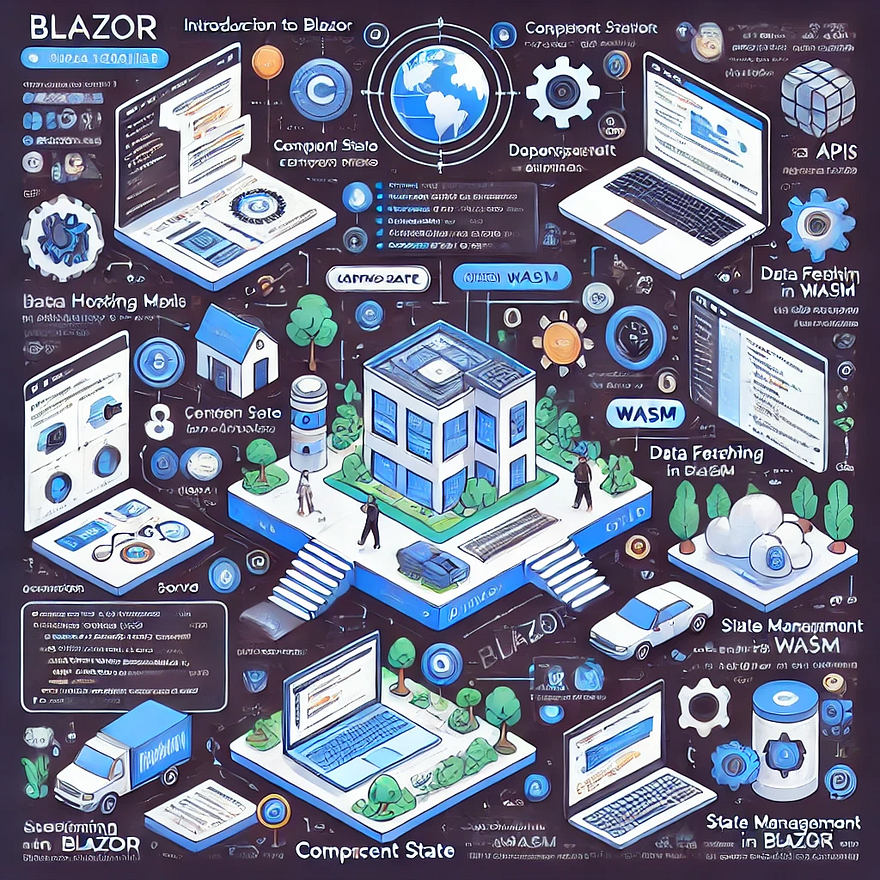
Introduction
- Briefly introduce Blazor as a modern framework for building interactive web UIs using C# and .NET.
- Highlight how it allows developers to create rich, client-side applications without relying heavily on JavaScript.
- Mention the two hosting models: Blazor Server and Blazor WebAssembly (WASM).
1. What is Blazor?
- Define Blazor as a framework that enables C# and .NET for frontend development.
- Explain the use of Razor Components for UI development.
- Discuss the advantage of using Blazor over traditional JavaScript-based frameworks.
2. Blazor Hosting Models
A. Blazor Server
- Runs on the server and uses SignalR for UI updates.
- Pros:
- Smaller app size (no WebAssembly download).
- Faster load times.
- Cons:
- Requires a constant network connection.
- Higher latency due to server communication.
B. Blazor WebAssembly (WASM)
- Runs entirely on the client in the browser using WebAssembly.
- Pros:
- Works offline after initial load.
- Reduced server load.
- Cons:
- Larger initial download size.
- Limited access to server resources.
3. Setting Up a Blazor Project
A. Install .NET SDK
- Ensure .NET is installed:
- sh
dotnet --version- Install the Blazor WebAssembly template:
- sh
dotnet new blazorwasm -n MyBlazorApp- Run the application:
- sh
cd MyBlazorApp dotnet run
B. Project Structure
Pages/- Contains Blazor components (e.g.,Index.razor).Shared/- Shared components (e.g., navigation).wwwroot/- Static assets like CSS and images.
4. Building a Simple Blazor Component
A. Create a Counter Component
- Edit
Counter.razor: - r
<h3>Counter</h3> <p>Current count: @count</p> <button @onclick="IncrementCount">Click me</button> @code { private int count = 0; private void IncrementCount() { count++; } }- Explain:
- Event binding using
@onclick. - C# logic within
@code {}.
5. Working with Data and APIs
A. Fetching Data from an API
- Use
HttpClientto fetch data inFetchData.razor: - razor
@inject HttpClient Http <h3>Weather Forecast</h3> @if (forecasts == null) { <p>Loading...</p> } else { <ul> @foreach (var forecast in forecasts) { <li>@forecast.TemperatureC °C - @forecast.Summary</li> } </ul> } @code { private WeatherForecast[] forecasts; protected override async Task OnInitializedAsync() { forecasts = await Http.GetFromJsonAsync<WeatherForecast[]>("sample-data/weather.json"); } }- Explain:
- Dependency injection of
HttpClient. - Async data fetching with
OnInitializedAsync.
6. State Management in Blazor
- Discuss Component State using
CascadingParameter. - Introduce Dependency Injection (DI) for shared services.
- Explain Session and Local Storage.
7. Deploying a Blazor App
A. Publishing for WebAssembly
shdotnet publish -c Release --output ./publishB. Hosting on Azure or GitHub Pages
- Azure Static Web Apps for deployment.
- GitHub Actions for CI/CD.
Conclusion
- Blazor empowers .NET developers to build interactive web apps without JavaScript.
- Server and WebAssembly models allow flexibility in hosting.
- Encourage further exploration with authentication, performance tuning, and third-party UI libraries.
WEBSITE: https://www.ficusoft.in/dot-net-training-in-chennai/


Comments
Post a Comment