Integrating Snowflake with BI Tools like Tableau and Power BI
Integrating Snowflake with BI Tools like Tableau and Power BI Snowflake, a cloud-based data warehouse, provides seamless integration with business intelligence (BI) tools like Tableau and Power BI, enabling organizations to visualize, analyze, and gain insights from large datasets efficiently.
This guide covers how to connect Snowflake to Tableau and Power BI, key performance optimizations, and best practices for efficient BI reporting.
1️⃣ Why Use Snowflake with Tableau & Power BI?
🔹 Scalability: Handle petabytes of data effortlessly.
🔹 High Performance: Uses Massively Parallel Processing (MPP) for fast queries.
🔹 Secure & Governed Data Access: Supports RBAC, encryption, and multi-factor authentication.
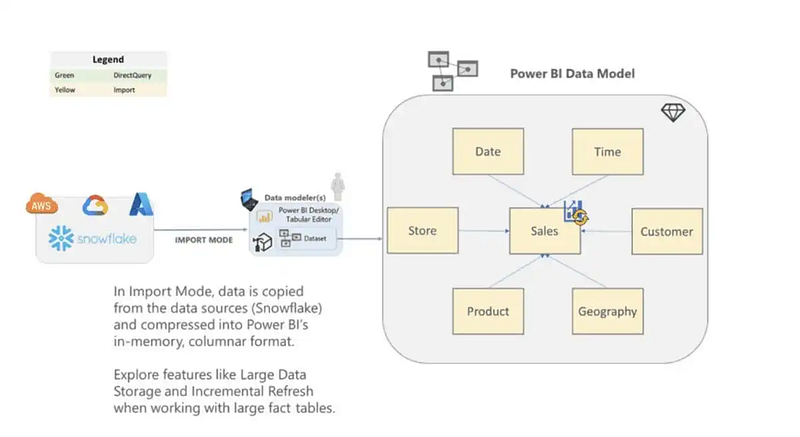
🔹 Live & Cached Data Connectivity: Choose between direct query (live data) or import mode (cached data).
2️⃣ Connecting Snowflake to Tableau 🔗 Steps to Connect Snowflake to Tableau
1️⃣ Install the Snowflake ODBC Driver Download from Snowflake’s official site. Install and configure the driver with Snowflake account details.
2️⃣ Open Tableau and Select Data Source In Tableau, go to Connect → Snowflake. Enter Snowflake credentials (Account, Username, Password).
3️⃣ Choose Warehouse, Database, and Schema Select the appropriate Warehouse for optimized performance. Pick the Database and Schema to load data.
4️⃣ Set Connection Type: Live vs Extract Live Connection: Queries Snowflake in real time (slower but always fresh). Extract: Caches data in Tableau for faster performance but requires periodic refreshes.
5️⃣ Build Your Dashboard Drag tables into the Data Pane and create relationships. Use Tableau’s visualization tools to build interactive charts.
3️⃣ Connecting Snowflake to Power BI
🔗 Steps to Connect Snowflake to Power BI
1️⃣ Install the Snowflake ODBC Driver Download from Snowflake’s official site.
2️⃣ Open Power BI and Select Data Source In Power BI, go to Home → Get Data → More → Snowflake. Enter Snowflake Server, Username, and Password.
3️⃣ Select Warehouse, Database, and Schema Choose the right warehouse based on the data volume.
4️⃣ Set Connection Mode: Import vs DirectQuery Import Mode: Loads data into Power BI for better performance. DirectQuery Mode: Queries Snowflake live, ensuring real-time updates.
5️⃣ Build Your Reports Use Power BI’s DAX functions and visualizations to create reports.
4️⃣ Performance Optimization Tips
⚡ Use Materialized Views → Precompute results to speed up queries.
⚡ Optimize Warehouses → Use the right warehouse size based on query load.
⚡ Partition & Clustering → Optimize data organization to improve query performance.
⚡ Use Caching → In Tableau, use Extract Mode; in Power BI, use Import Mode.
⚡ Optimize Queries → Use filters and aggregations to reduce query load.
5️⃣ Best Practices for Snowflake-BI Integration
✅ Role-Based Access Control (RBAC): Assign access based on user roles.
✅ Scheduled Refreshes: Automate data extracts to keep dashboards up to date.
✅ Avoid Overloading Snowflake Warehouse: Use caching and aggregation strategies.
✅ Monitor Query Performance:
Use Snowflake’s Query History & Resource Monitors. 🚀 Conclusion Integrating Snowflake with Tableau and Power BI allows businesses to leverage scalable, high-performance analytics with real-time data access.
By choosing the right connection mode, optimizing queries, and using best practices, you can create efficient, visually compelling dashboards for data-driven decision-making.
WEBSITE: https://www.ficusoft.in/snowflake-training-in-chennai/


Comments
Post a Comment