Creating Data Pipelines Using Azure Data Factory's Visual Tools
Introduction
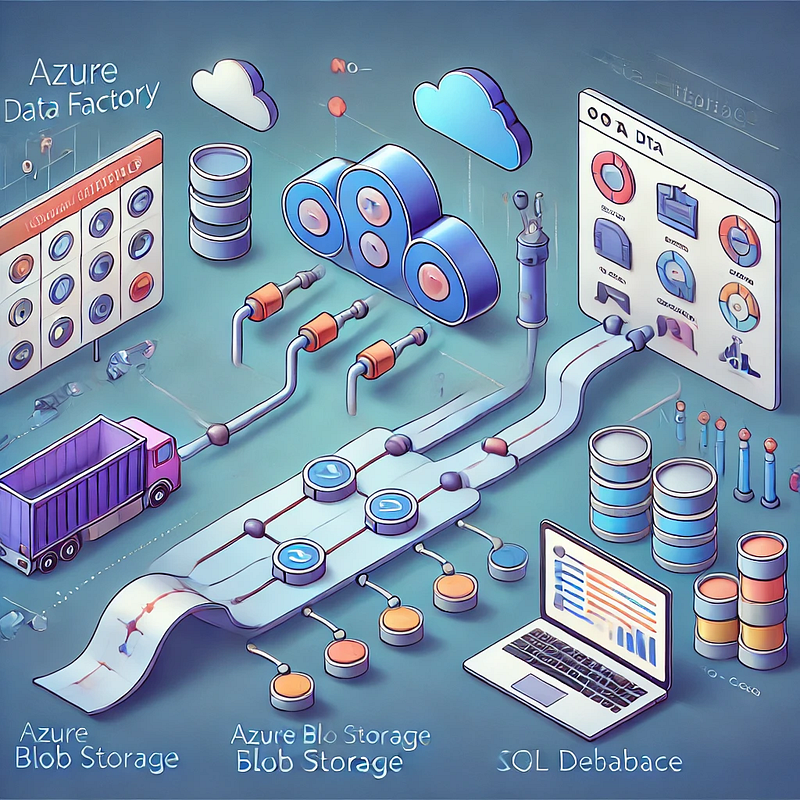
Azure Data Factory (ADF) provides a no-code/low-code visual interface to design and orchestrate data pipelines with ease. Using ADF’s drag-and-drop tools, data engineers can move, transform, and integrate data across various sources without writing extensive code.
In this blog, we will explore:
✔ Key features of ADF’s visual tools
✔ Step-by-step guide to creating a pipeline
✔ Best practices for optimizing pipeline performance
1. Overview of Azure Data Factory’s Visual Tools
ADF’s visual tools simplify pipeline development with:
✅ Pipeline Designer — A graphical interface to build ETL/ELT workflows
✅ Copy Data Tool — A wizard-driven tool for quickly moving data
✅ Data Flow Designer — A no-code interface for complex transformations
✅ Monitoring Dashboard — A visual way to track pipeline executions
These tools enable both citizen developers and data engineers to build and manage workflows without deep coding expertise.
2. Step-by-Step Guide: Creating a Data Pipeline Using Visual Tools
Step 1: Create a New Data Pipeline
1️⃣ Open Azure Data Factory Studio
2️⃣ Navigate to Author → Pipelines
3️⃣ Click New Pipeline
Step 2: Add Data Sources (Linked Services)
1️⃣ In the Connections tab, add linked services for data sources & destinations
2️⃣ Select from 90+ built-in connectors (e.g., Azure Blob, SQL, Snowflake)
Step 3: Use the Copy Data Tool for Simple Transfers
1️⃣ Open Copy Data Tool
2️⃣ Select Source & Destination
3️⃣ Configure mapping & transformations
4️⃣ Trigger pipeline execution
Step 4: Design a Data Flow for Complex Transformations
1️⃣ Open Data Flow Designer
2️⃣ Add transformations like Join, Aggregate, Pivot
3️⃣ Preview & debug the data flow before execution
Step 5: Monitor and Debug the Pipeline
1️⃣ Navigate to Monitor → Pipeline Runs
2️⃣ View execution logs & errors
3️⃣ Set up alerts & retries for failures
3. Best Practices for Efficient Pipelines
🚀 Optimize Performance
✔ Use partitioning to speed up data movement
✔ Enable parallel processing for large datasets
✔ Use staging areas in Blob Storage for efficient ETL
🔒 Enhance Security
✔ Use Managed Identities for authentication
✔ Encrypt data using Azure Key Vault
✔ Restrict access via Private Endpoints & VNet integration
💰 Reduce Costs
✔ Use Incremental Data Loads instead of full refresh
✔ Monitor activity logs to avoid unnecessary executions
✔ Optimize Integration Runtimes to match workload needs
Conclusion
Azure Data Factory’s visual tools make it easy to build, manage, and optimize data pipelines without writing complex code. By following best practices, you can ensure performance, security, and cost efficiency.
👉 Stay tuned for more in-depth tutorials on metadata-driven pipelines, parameterization, and ADF REST API integration! 🚀
WEBSITE: https://www.ficusoft.in/azure-data-factory-training-in-chennai/


Comments
Post a Comment