Integrating Azure Data Factory with Power BI for Automated Reporting
1. Introduction
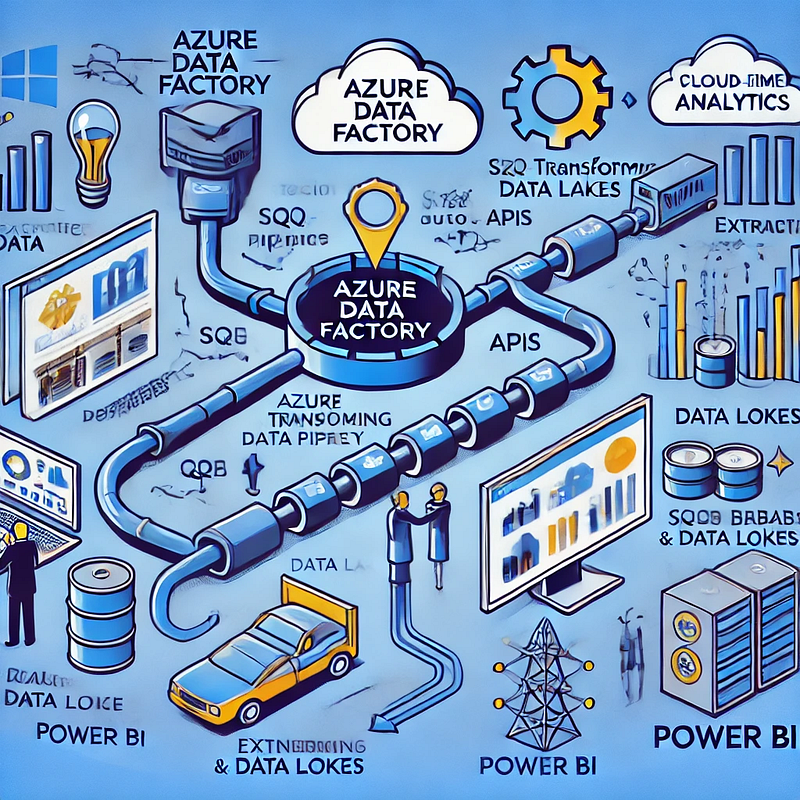
Data-driven decision-making relies on real-time reporting and insights. By integrating Azure Data Factory (ADF) with Power BI, organizations can automate data extraction, transformation, and loading (ETL) into Power BI, ensuring reports are always up to date.
In this blog, we’ll explore:
- The benefits of integrating ADF with Power BI
- Methods to connect ADF with Power BI
- Automating data pipelines for real-time reporting
- Best practices for seamless integration
2. Why Integrate Azure Data Factory with Power BI?
✅ Automated Data Refresh — Ensure Power BI reports always reflect the latest data.
✅ Scalability — Handle large datasets efficiently with ADF’s orchestration.
✅ Data Transformation — Clean, format, and structure data before visualization.
✅ Cost Efficiency — Optimize ETL workflows with cloud-native automation.
3. Methods to Integrate Azure Data Factory with Power BI
There are several approaches to connecting ADF with Power BI:
3.1 Using Azure Synapse Analytics as an Intermediate Layer
- ADF loads data into Azure Synapse Analytics (formerly Azure SQL Data Warehouse).
- Power BI connects to Synapse Analytics via DirectQuery or Import mode.
- Scheduled refreshes ensure real-time reporting.
3.2 Loading Data into Azure SQL Database
- ADF extracts and transforms data from multiple sources.
- The transformed data is loaded into Azure SQL Database.
- Power BI connects to Azure SQL and fetches the latest data.
3.3 Storing Processed Data in Azure Data Lake
- ADF processes and stores data in Azure Data Lake Storage (ADLS).
- Power BI connects to ADLS using Azure Data Lake Connector.
- Reports are refreshed on a predefined schedule.
3.4 Using REST API for Power BI Data Refresh
- ADF triggers a Power BI dataset refresh via Power BI’s REST API.
- This ensures Power BI dashboards are updated automatically.
4. Step-by-Step Guide: Automating Power BI Reports with ADF
Step 1: Set Up a Data Pipeline in ADF
- Create an Azure Data Factory instance.
- Use Copy Data Activity to extract data from sources like SQL, Blob Storage, or APIs.
- Transform data using Mapping Data Flow.
- Store the transformed data in Azure SQL Database or Data Lake.
Step 2: Connect Power BI to Azure Storage
- In Power BI Desktop, click Get Data → Azure.
- Select Azure SQL Database, Azure Synapse, or Data Lake Storage.
- Load data into Power BI for visualization.
Step 3: Automate Power BI Data Refresh with ADF
- Enable Power BI’s REST API in the Power BI service.
- In ADF, create a Web Activity to call the Power BI Refresh Dataset API.
- Configure authentication using Azure Active Directory (AAD) tokens.
- Schedule the pipeline to run at predefined intervals.
5. Best Practices for ADF and Power BI Integration
✅ Use Incremental Data Loading — Avoid unnecessary data duplication.
✅ Optimize Power BI Queries — Leverage DirectQuery for real-time analysis.
✅ Monitor and Optimize ADF Pipelines — Use ADF’s monitoring dashboard.
✅ Secure Data Transfers — Implement Azure Key Vault for storing credentials.
6. Conclusion
Integrating Azure Data Factory with Power BI streamlines data workflows, ensuring real-time, automated reporting. By leveraging ADF’s data processing capabilities and Power BI’s visualization power, organizations can enhance decision-making and business insights.
WEBSITE: https://www.ficusoft.in/azure-data-factory-training-in-chennai/


Comments
Post a Comment