Automating Pipeline Failure Notifications Using Logic Apps and Azure Monitor
Automating Pipeline Failure Notifications Using Logic Apps and Azure Monitor
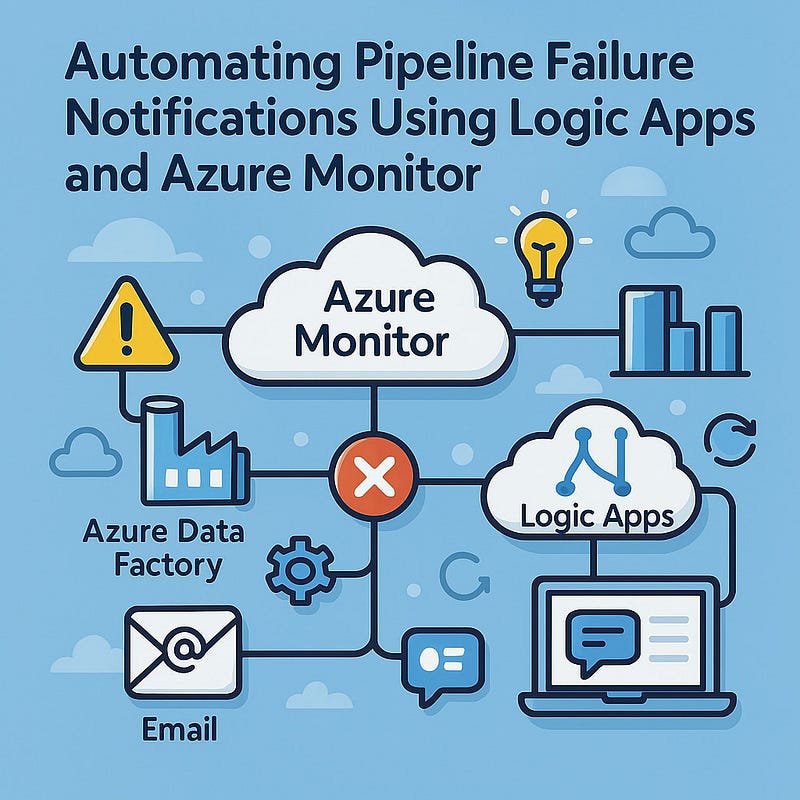
When data pipelines fail silently, the cost is more than just delayed reports — it’s lost trust, poor decisions, and operational hiccups. Fortunately, with Azure Monitor and Logic Apps, you can build a smart alerting system that automatically notifies the right team when an Azure Data Factory pipeline fails.
In this blog, we’ll walk through how to automate failure notifications using native Azure services — no code-heavy solutions or third-party tools required.
🔍 Why Automate Failure Notifications?
Manual monitoring of pipelines just doesn’t scale. Automating your alerts provides:
- ⏱ Faster response times
- 📉 Reduced downtime
- 📬 Instant notifications via Email, Teams, Slack, etc.
- 🚀 Better SLA adherence
🧰 Tools You’ll Need
- Azure Data Factory (ADF) — where your pipelines live
- Azure Monitor — for diagnostics and alert rules
- Azure Logic Apps — to define workflows triggered by alerts
- (Optional) Microsoft Teams, Email, Webhooks, etc. — for notification endpoints
⚙️ Step-by-Step: Setting Up Automatic Notifications
Step 1: Enable Diagnostic Logging in Azure Data Factory
- Go to your ADF instance.
- Navigate to Monitoring > Diagnostic Settings.
- Create a new diagnostic setting and select:
- PipelineRuns
- ActivityRuns
- Output to Log Analytics (you’ll need this for Azure Monitor to track failures)
Step 2: Create a Log Analytics Query to Detect Failures
Head to your Log Analytics workspace and run a query like this:
kustoADFActivityRun
| where Status == "Failed"
| project PipelineName, ActivityName, Status, Error, RunStart, RunEndThis pulls failure logs that you’ll use to trigger notifications.
Step 3: Set Up an Azure Monitor Alert
- Navigate to Azure Monitor > Alerts > New Alert Rule.
- Scope: Choose your Log Analytics workspace.
- Condition: Use a custom Kusto query like the one above.
- Threshold: Set to fire when the count > 0.
- Action Group: Create one and select Logic App as the action type.
Step 4: Build the Logic App Workflow
In Logic Apps:
- Use the trigger: When an HTTP request is received (this is called by Azure Monitor).
- Add actions such as:
- Send an email using Outlook
- Post to Microsoft Teams channel
- Send a webhook to an incident management tool like PagerDuty or OpsGenie
You can enrich the payload with pipeline name, time, and error message.
📦 Example: Email Notification Payload
json{
"subject": "🔴 Data Factory Pipeline Failed",
"body": "Pipeline 'CustomerETL' failed at 3:42 PM with error: 'Timeout on Copy Activity'."
}This can be dynamically populated using Logic App variables.
✅ Bonus Tips
- Add logic to suppress duplicate alerts within a short time span.
- Include retry logic in Logic App to handle flaky endpoints.
- Use adaptive cards in Teams for interactive alerts (e.g., ‘Acknowledge’, ‘Escalate’).
🧠 Wrapping Up
By combining Azure Monitor + Logic Apps, you can create a low-maintenance, scalable notification system that catches issues in real-time. This not only improves reliability but empowers your team to fix issues faster.
Whether you’re running dozens of pipelines or scaling up to hundreds, this setup keeps you informed — automatically.
WEBSITE: https://www.ficusoft.in/azure-data-factory-training-in-chennai/


Comments
Post a Comment