Building Dynamic Pipelines in Azure Data Factory Using Variables and Parameters
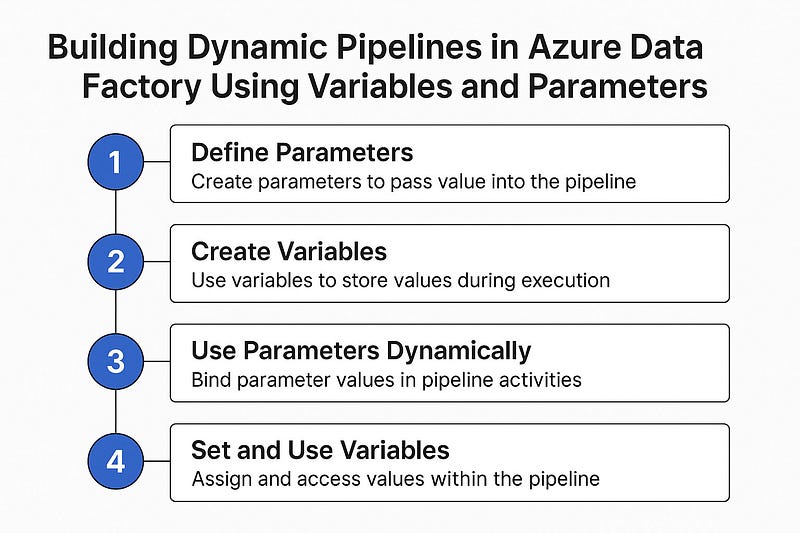
Azure Data Factory (ADF) is a powerful ETL and data integration tool, and one of its greatest strengths is its dynamic pipeline capabilities. By using parameters and variables, you can make your pipelines flexible, reusable, and easier to manage — especially when working with multiple environments, sources, or files.
In this blog, we’ll explore how to build dynamic pipelines in Azure Data Factory using parameters and variables, with practical examples to help you get started.
🎯 Why Go Dynamic?
Dynamic pipelines:
- Reduce code duplication
- Make your solution scalable and reusable
- Enable parameterized data loading (e.g., different file names, table names, paths)
- Support automation across multiple datasets or configurations
🔧 Parameters vs Variables: What’s the Difference?
FeatureParametersVariablesScopePipeline level (readonly)Pipeline or activity levelUsagePass values into a pipelineStore values during executionMutabilityImmutable after pipeline startsMutable (can be set/updated)
Step-by-Step: Create a Dynamic Pipeline
Let’s build a sample pipeline that copies data from a source folder to a destination folder dynamically based on input values.
✅ Step 1: Define Parameters
In your pipeline settings:
- Create parameters like
sourcePath,destinationPath, andfileName.
json"parameters": {
"sourcePath": { "type": "string" },
"destinationPath": { "type": "string" },
"fileName": { "type": "string" }
}✅ Step 2: Create Variables (Optional)
Create variables like status, startTime, or rowCount to use within the pipeline for tracking or conditional logic.
json"variables": {
"status": { "type": "string" },
"rowCount": { "type": "int" }
}✅ Step 3: Use Parameters Dynamically in Activities
In a Copy Data activity, dynamically bind your source and sink:
Source Path Example:
json@concat(pipeline().parameters.sourcePath, '/', pipeline().parameters.fileName)Sink Path Example:
json@concat(pipeline().parameters.destinationPath, '/', pipeline().parameters.fileName)✅ Step 4: Set and Use Variables
Use a Set Variable activity to assign a value:
json"expression": "@utcnow()"Use an If Condition or Switch to act based on a variable value:
json@equals(variables('status'), 'Success')📂 Real-World Example: Dynamic File Loader
Scenario: You need to load multiple files from different folders every day (e.g., sales/, inventory/, returns/).
Solution:
- Use a parameterized pipeline that accepts folder name and file name.
- Loop through a metadata list using ForEach.
- Pass each file name and folder as parameters to your main data loader pipeline.
🧠 Best Practices
- 🔁 Use ForEach and Execute Pipeline for modular, scalable design.
- 🧪 Validate parameter inputs to avoid runtime errors.
- 📌 Use variables to track status, error messages, or row counts.
- 🔐 Secure sensitive values using Azure Key Vault and parameterize secrets.
🚀 Final Thoughts
With parameters and variables, you can elevate your Azure Data Factory pipelines from static to fully dynamic and intelligent workflows. Whether you’re building ETL pipelines, automating file ingestion, or orchestrating data flows across environments — dynamic pipelines are a must-have in your toolbox.
WEBSITE: https://www.ficusoft.in/azure-data-factory-training-in-chennai/


Comments
Post a Comment