How to Use Control Flow Activities in Azure Data Factory for Enhanced Orchestration
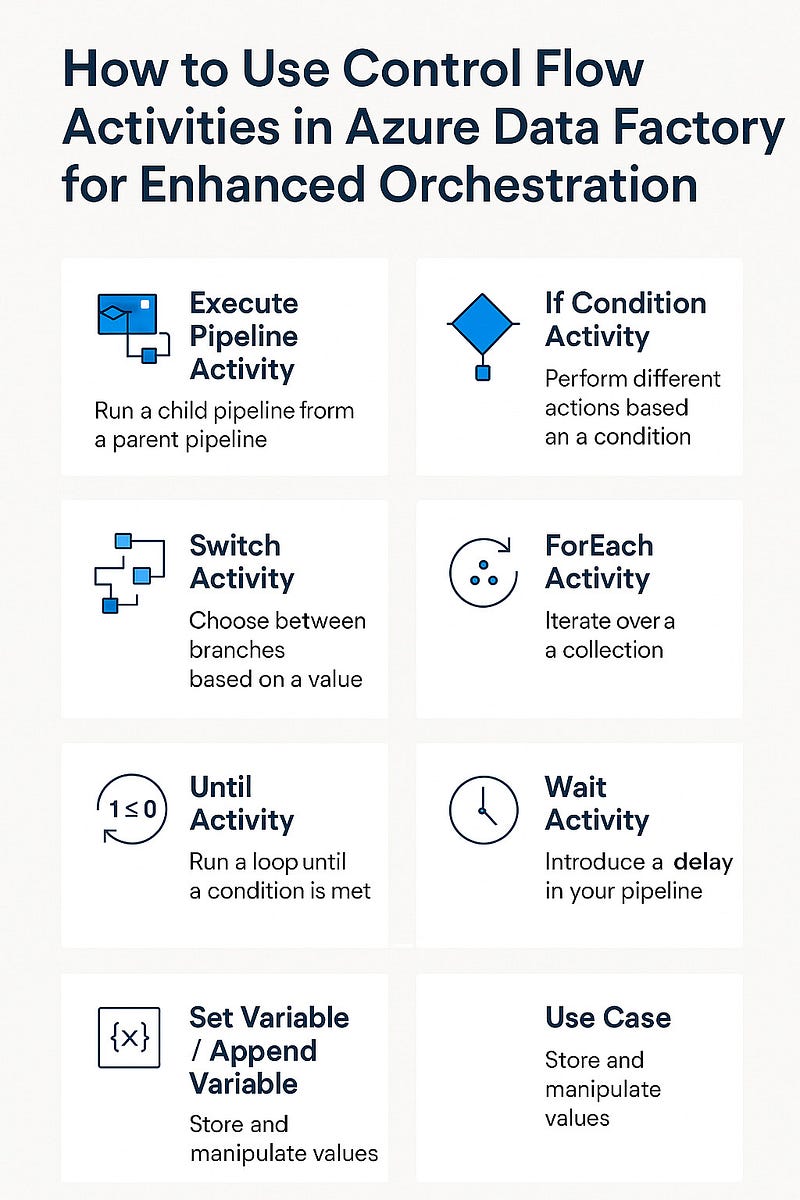
Azure Data Factory (ADF) is more than just a data movement tool — it’s a powerful orchestration engine. With Control Flow activities, you can create intelligent, conditional, and parallel workflows that make your data pipelines smarter and more efficient.
In this blog, we’ll break down how Control Flow activities work, the different types available, and how to use them effectively to boost your ADF pipeline orchestration.
📌 What Are Control Flow Activities in ADF?
Control Flow activities in ADF define the execution logic of your pipeline — how and when different parts of your pipeline should run. These activities don’t transform data, but they control how data transformation and movement happen.
Think of them as the brain of your pipeline, deciding what happens, when, and under what conditions.
🔄 Types of Control Flow Activities
Here’s a breakdown of the most commonly used Control Flow activities:
1. Execute Pipeline Activity
- Use Case: To modularize your logic by running a child pipeline from a parent pipeline.
- Example: Reuse a “Data Cleanup” pipeline across multiple ETL processes.
2. If Condition Activity
- Use Case: To perform different actions based on a condition.
- Example: If a file exists, move to the next step; else, send a failure email.
3. Switch Activity
- Use Case: To choose between multiple branches based on a dynamic value.
- Example: Run different data transformation pipelines based on the region code (US, EU, APAC, etc.).
4. ForEach Activity
- Use Case: To iterate over a collection (like an array of files or databases).
- Example: Loop through a list of file names and copy each one to a data lake.
5. Until Activity
- Use Case: To run a loop until a condition is met.
- Example: Keep checking a folder until a specific file arrives, then proceed.
6. Wait Activity
- Use Case: To introduce a delay in your pipeline.
- Example: Pause execution for 2 minutes before retrying a failed task.
7. Set Variable / Append Variable
- Use Case: Store and manipulate values during pipeline execution.
- Example: Track success/failure status of each task dynamically.
🧠 Real-World Use Case: Orchestrating a Sales ETL Process
Here’s how you could combine control flow activities in a single pipeline:
- Execute Pipeline — Run a shared “Extract Data” pipeline.
- If Condition — Check if extraction was successful.
- Switch Activity — Based on the region, run different “Transform” pipelines.
- ForEach — Loop through each product category and load data.
- Until — Wait until the “Daily Sales Report” file is available.
- Wait — Introduce a buffer to avoid API throttling.
- Set Variable — Log status at each stage for auditing.
⚙️ Best Practices
- Keep pipelines modular using Execute Pipeline.
- Avoid infinite loops in Until and ForEach activities.
- Use logging variables to track progress and troubleshoot.
- Limit nested activities to maintain readability.
- Handle failures gracefully with conditional branches.
🚀 Final Thoughts
Control Flow activities turn Azure Data Factory from a simple ETL tool into a full-fledged workflow automation and orchestration platform. By using them strategically, you can design intelligent pipelines that react to real-world scenarios, handle failures, and automate complex data processes with ease.
WEBSITE: https://www.ficusoft.in/azure-data-factory-training-in-chennai/


Comments
Post a Comment